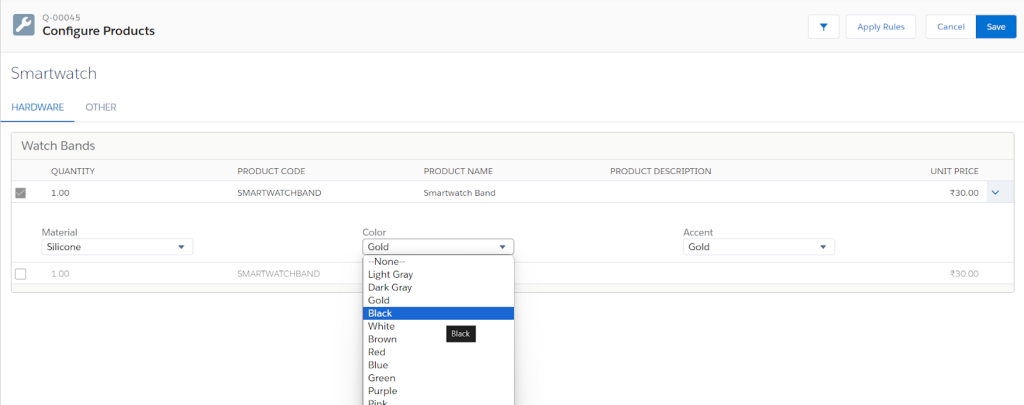

Global attributes CPQ
Global attributes are configuration attributes that you can assign to any product options in any number of bundles.
Step 1: Go to setup → object manager → product option and create new picklist field.
Field label – Color
Values –
Light Grey
Dark Grey
Gold
Black
White
Brown
Red
Blue
Green
Purple
Pink
Yellow
Step 2: Create one more picklist field on the product option object.
Label – Material
Values –
Silicone
Canvas
Stainless Steel
Leather
Step 3: Go to configuration attribute object→fields and relationship→ Target field. Add the below values.
Material__c
Color__c
Accent__c
Step 4: In the navigation bar, click Configuration Attributes and create new record.
recordType – Global Attribute
Attribute Name – Material.
Target Field – choose Material__c.
Step 5: We have to create two more records for colour and accent. So that creates a record for colour.
recordType – Global Attribute
Attribute Name – Colour.
Target Field – choose Color__c.
Step 6: Create a record for Accent.
recordType – Global Attribute
Attribute Name – Accent.
Target Field – choose Accent__c.
We have created three configuration attribute records.
Step 7: Create an attribute set of records. In the navigation bar, click Attribute Sets.
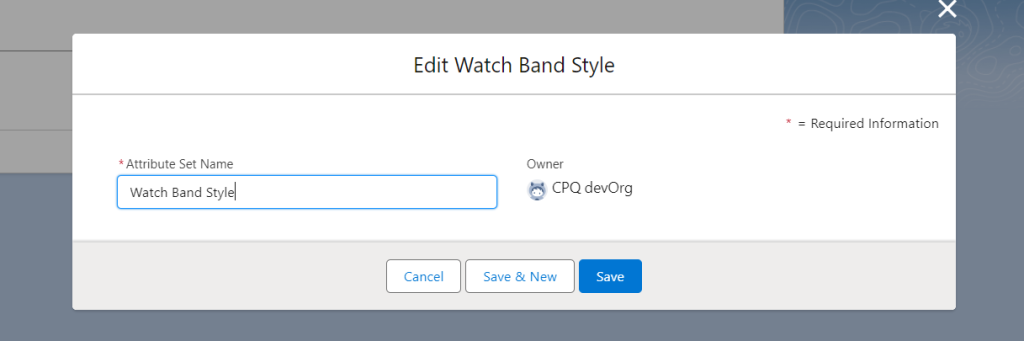
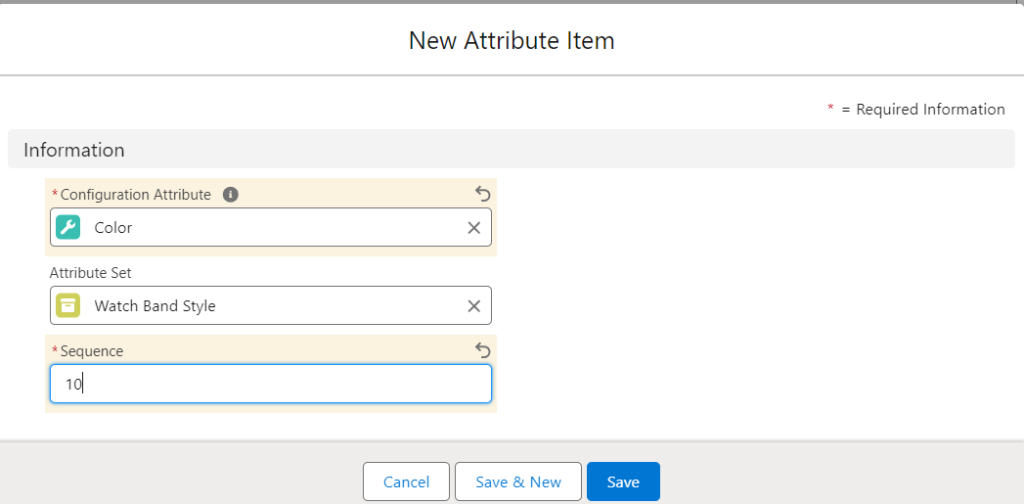
Step 8: Create an attribute item record for the colour attribute. Go to related attribute set → new attribute item.
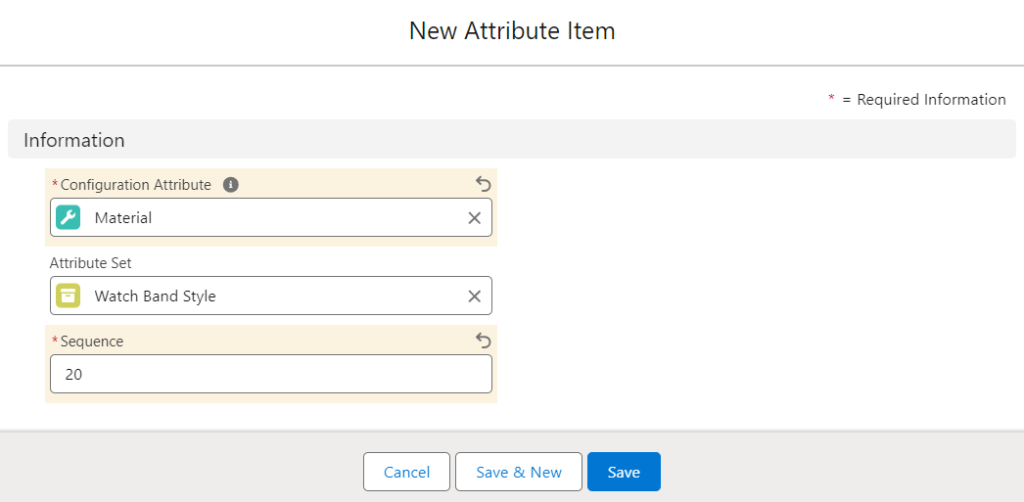
Step 9: Create an attribute item record for the Material attribute.
Step 10: Create an attribute item for the Accent attribute.
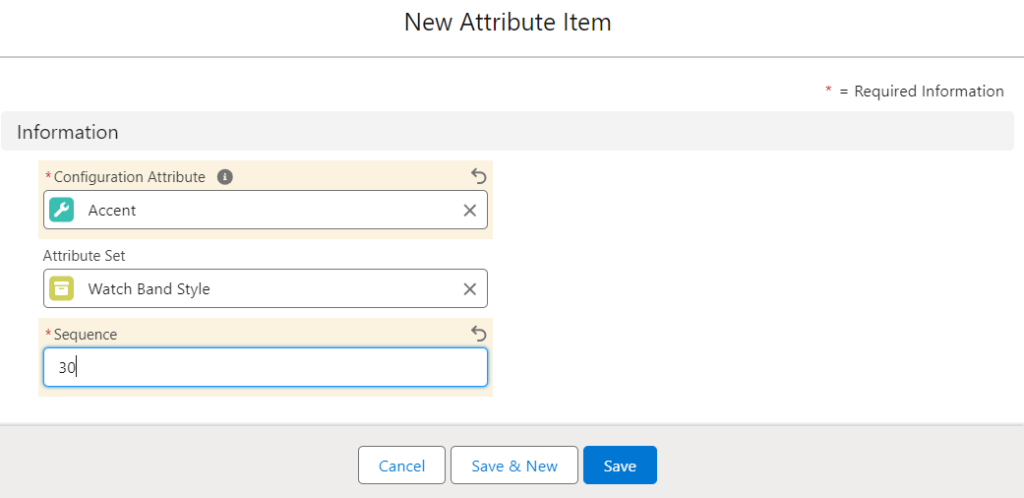
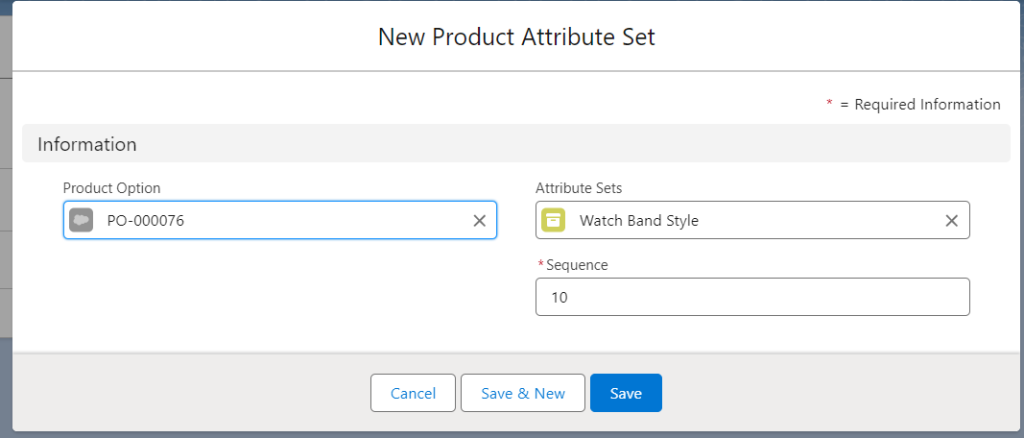
Step 11: Create a product attribute set record under the same attribute set record.
Go to product → related list tab →select product option record → related tab → create new Product Attribute Sets record
Step 12: Go to the product option record and edit the record. Update the below values.
Material – Silicone
Color – Dark Grey
Accent – Light Grey
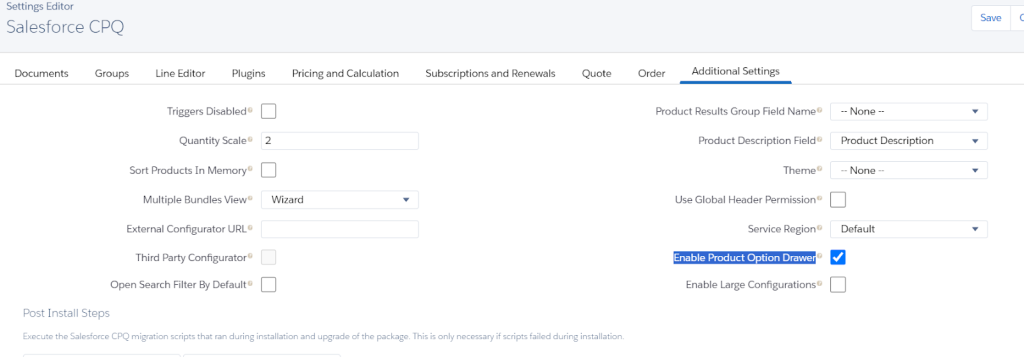
Step 13: Before we go to test the attribute, make sure that we have ‘Enable Product Option Drawer’ permission on cpq configure package setting. If you do not have permission, then go to installed package → select cpq package → click configure→ Enable Product option Drawer
Step 14: Finally, we have configured the global attributes with quote products. Now we can verify the changes on the quote product page.
Go to quote record → Edit lines → Add product
Select the product that we have configured.
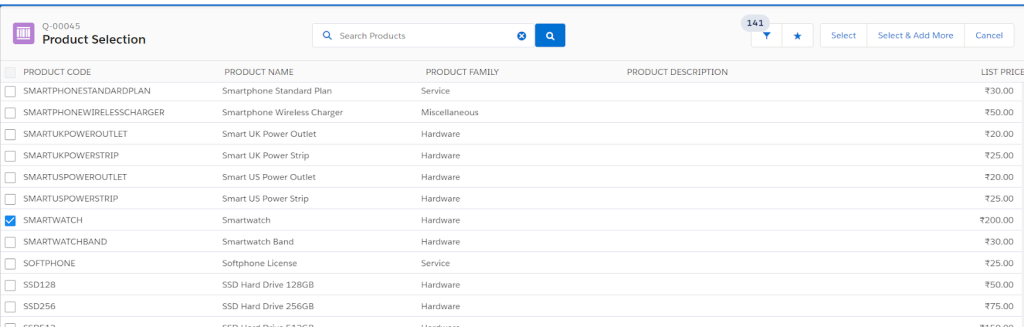
After product selection, we will see the attribute picklist here.