Guided Selling on CPQ
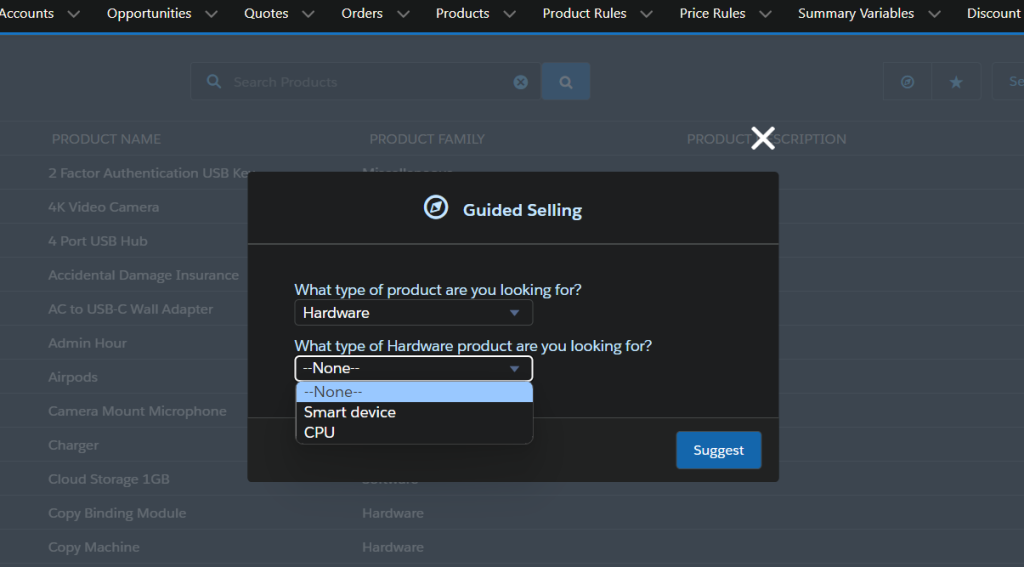
The CPQ guided selling feature is used to filter the product on the product configuration page. In some cases, users may want to search the record by product family or type. In this scenario, the Guided selling feature helps us make more flexible product selection.
Step 1: Go to setup → objects → products. Create below 3 custom fields.
Field Label – Hardware Type
Data type – picklist.
Values – CPU, Smart Devices
Field Label – Region
Data type – picklist.
Values – EU, UK, US
Field Label – CPU
Data type – picklist.
Values – i5, i7
Step 2: Go to setup → objects → process input. Create a custom field below.
Field Label – Hardware Type
Data type – picklist.
Values – Smart device, CPU
Field Label – Family
Data type – picklist;
Values – Smart device, CPU
Go to setup → objects → process input. Include the below values in the input field (custom field)
Family__c,
Hardware_Type__c,
CPU__c
Step 3: Now we need to create a quote process record, which is the main thing for guided selling.
Process Name – Guided Selling
Guided Only – true
Sort Order – 1
Step 4: once you create the quote process record, go to the related tab section and create the process input records.
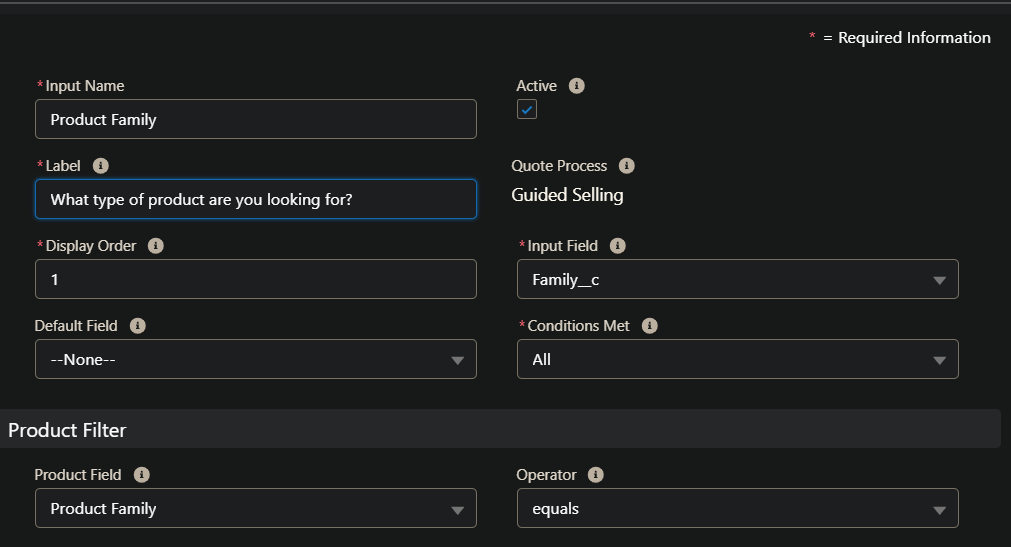
Step 5: Create a process input record for the Product Family.
Input Name – Product Family
Label – What type of product are you looking for?
Display Order – 1
Input Field – Family__c
Conditions Met – All
Product Field – Product Family
Operator – Equals
Active – True
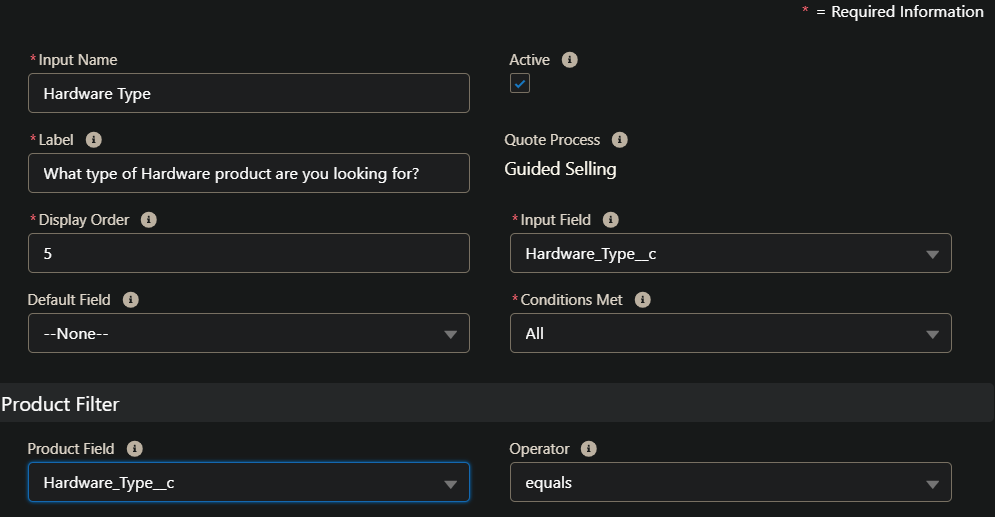
Step 6: Create a process input record for the Hardware Type.
Input Name – Hardware Type
Label – What type of Hardware product are you looking for?
Display Order – 5
Input Field – Hardware_Type__c
Conditions Met – All
Product Field – Hardware_Type__c
Operator – Equals
Active – True
Step 7: Create a process input condition record for hardware type process input.
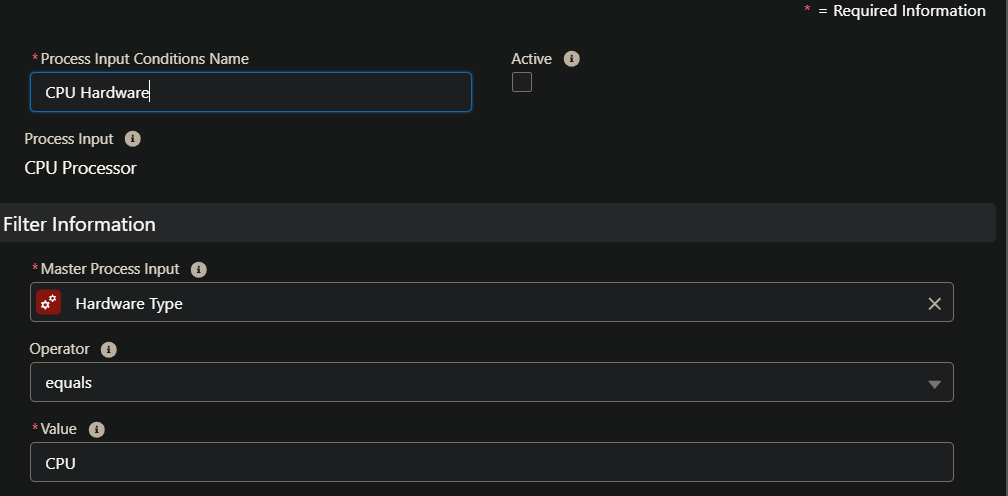
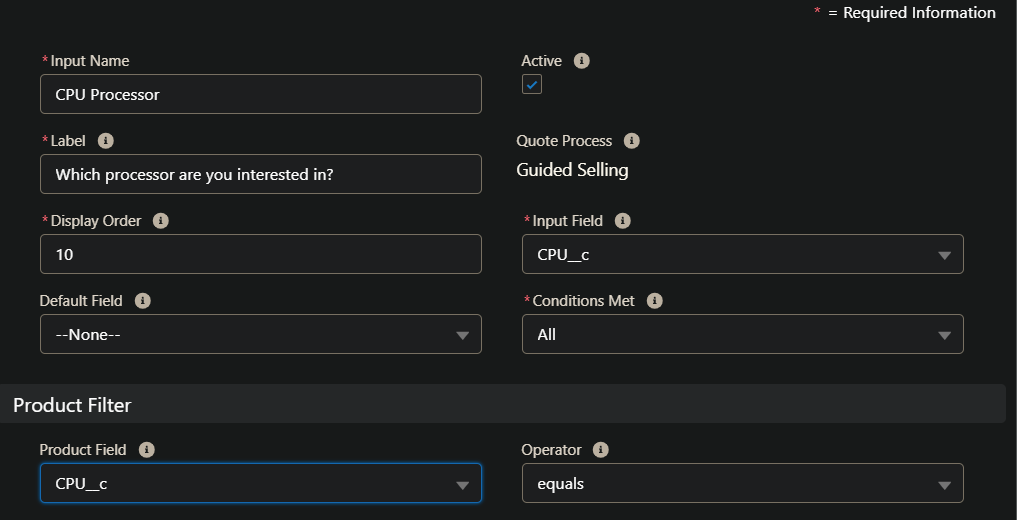
Step 8: Create a process input record for the CPU processor.
Input Name – CPU Processor
Label – Which processor are you interested in?
Display Order – 10
Input Field – CPU__c
Conditions Met – All
Product Field – CPU__c
Operator – Equals
Active – True
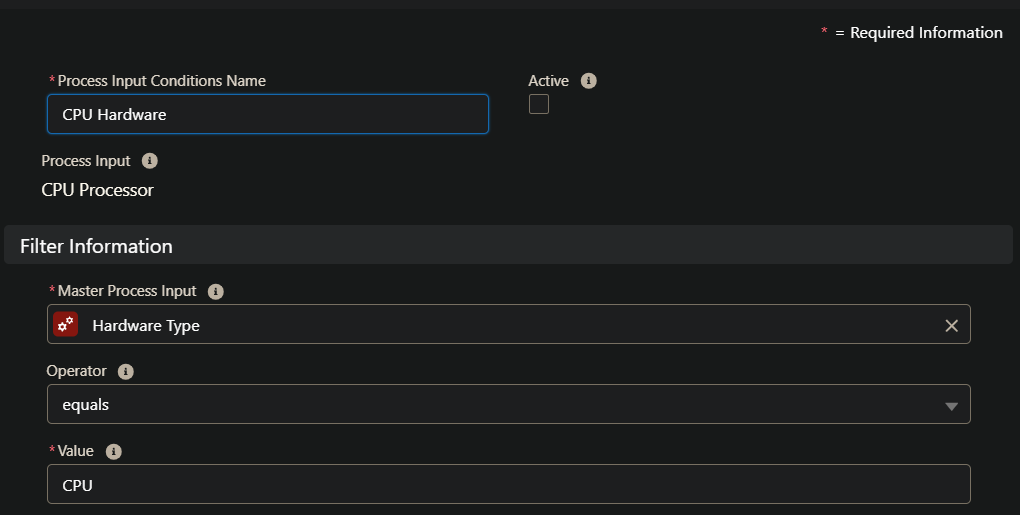
Step 9: Create a process input condition record for CPU Processor process input.
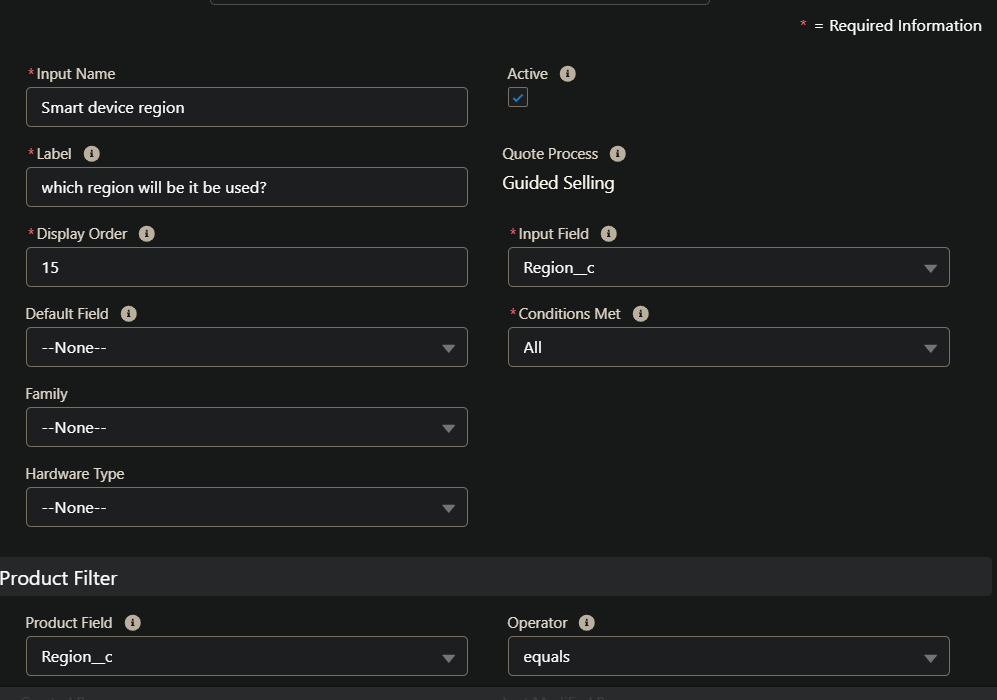
Step 10: Create a process input record for the Region.
Input Name – CPU Processor
Label – Which processor are you interested in?
Display Order – 10
Input Field – CPU__c
Conditions Met – All
Product Field – CPU__c
Operator – Equals
Active – True
Step 11: Create a process input condition record for Region process input.
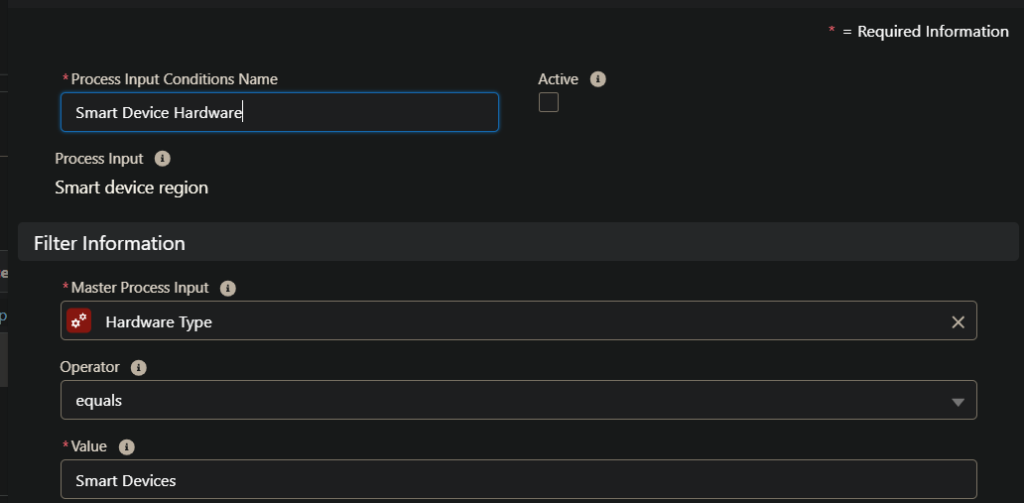
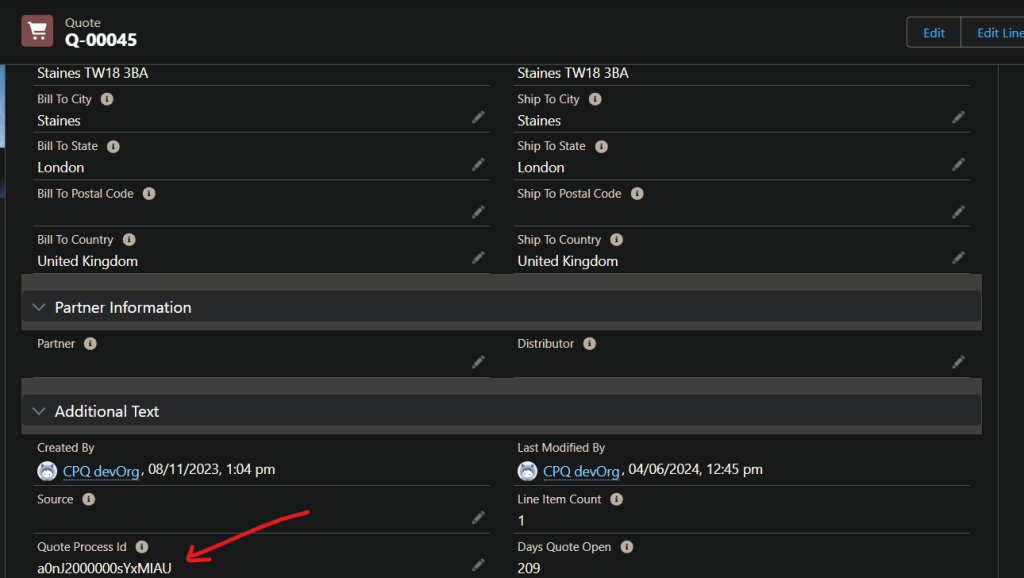
Step 12: Copy the Quote process record ID and open the quote record that you want to work. Paste the Quote process record ID in the quote record.
Step 13: Click the Edit Lines Button. Click the add Product Button. You will see the guided link pop-up section.