
ServiceMax – Create Child record(s) using Transaction Designer in Salesforce
ransaction Designer is a Service Flow manager (SFM) used to create/update records from the Parent object. It helps you define the flow of information across various service delivery processes. There are different types of transaction designers in SFM, which are as follows:
- Create a new Child record
- Update the same record
- Update the same and existing child records.
Here we will create one transaction designer to create a new child record.
Step 1:
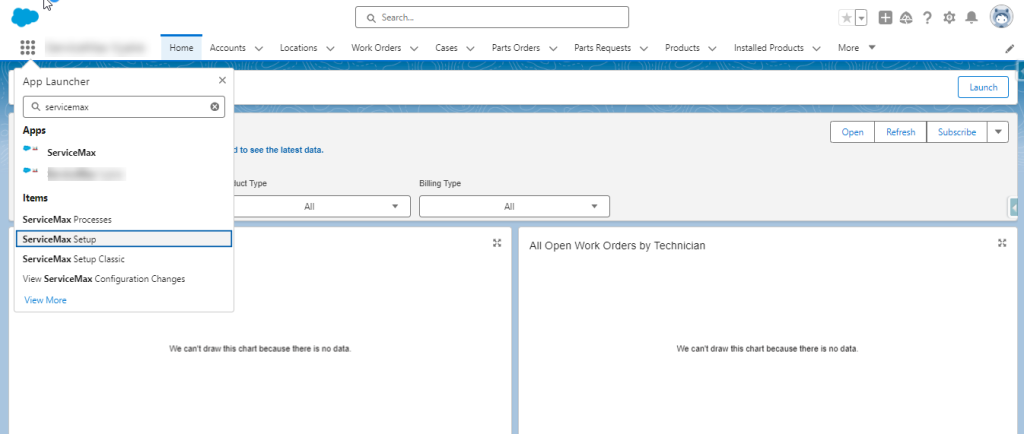
In the App Launcher, search for ServiceMax Setup and click to enter the ServiceMax Setup page.
Step 2:
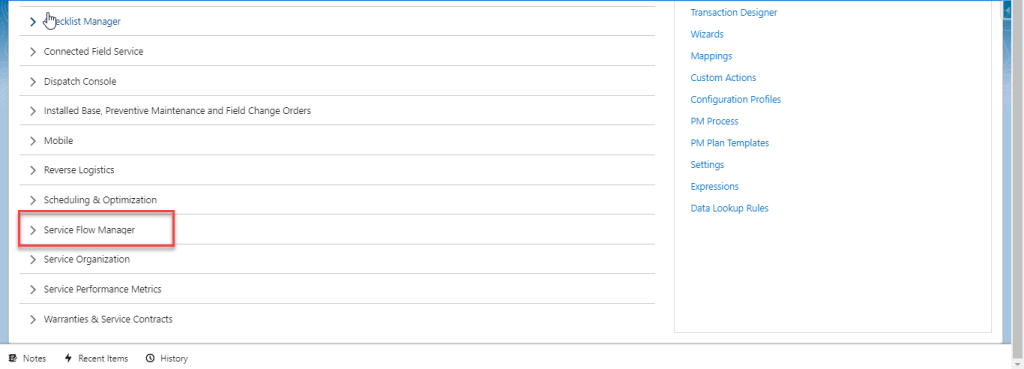
As per our blog content, we’re going to create a transaction designer, so we’ve selected
Service Flow Manager.
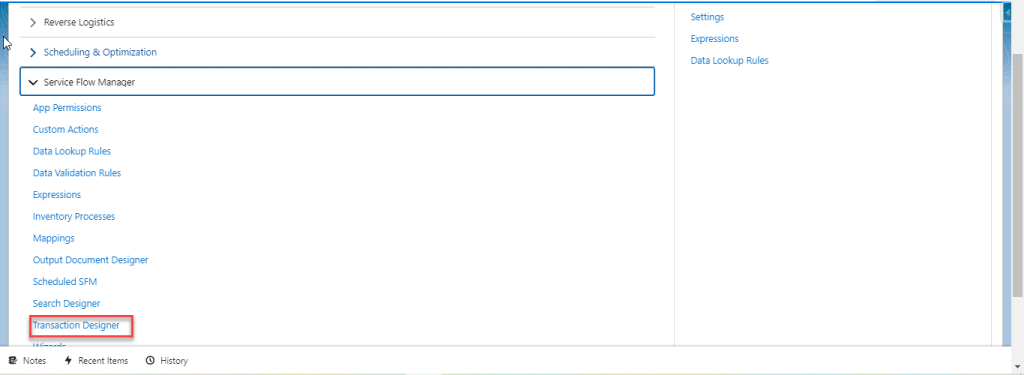
Step 3:Under the Service Flow Manager section, we have a lot of actions/events to work on with ServiceMax. Select the transaction designer to view the transaction designer page, which has existing transaction designs and also allows you to create a new one.
Step 4:
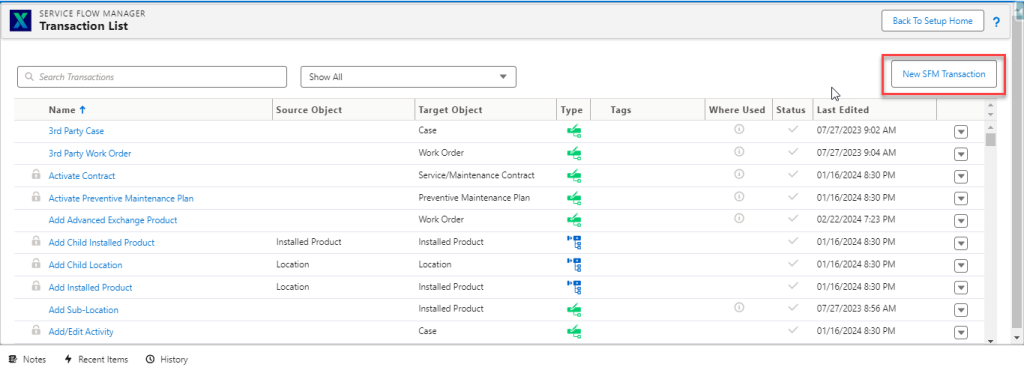
Here are some of the existing transaction designs used in the Salesforce Org. For the new transaction, click on the button New SFM Transaction, which appears in the top right corner.
Step 5:
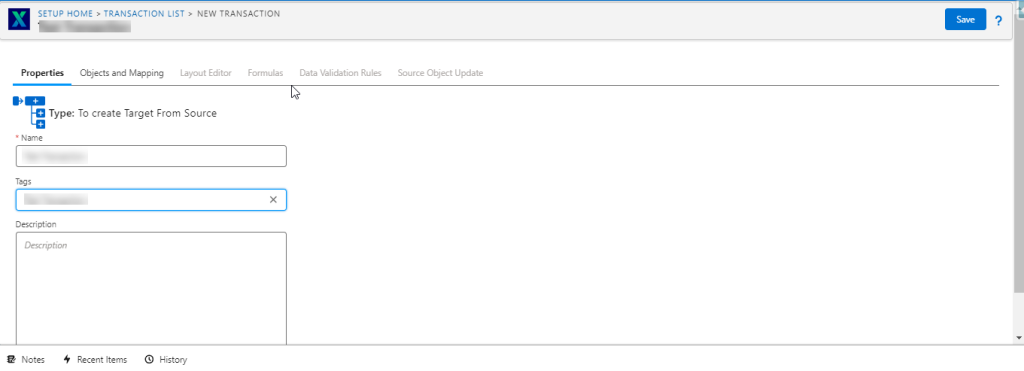
Complete the Properties tab to switch over the tabs in the Transaction Designer. The name should be greater than 8 characters.
Step 6:
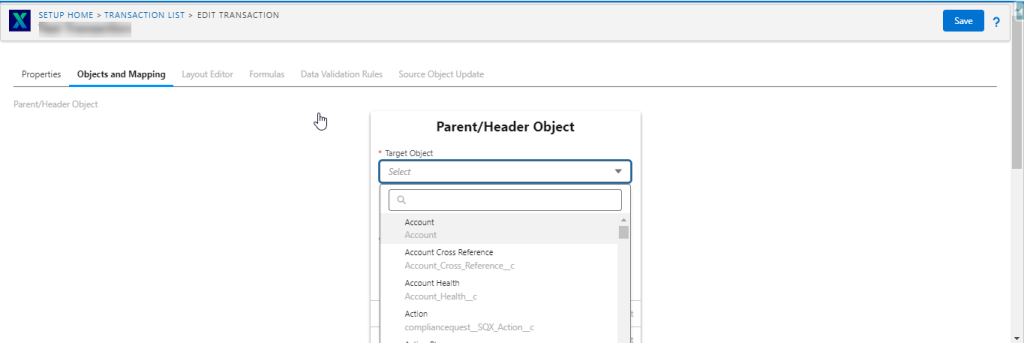
In the Objects and Mapping tab, we’re going to select the source object and the target object to create a record.
For Example:
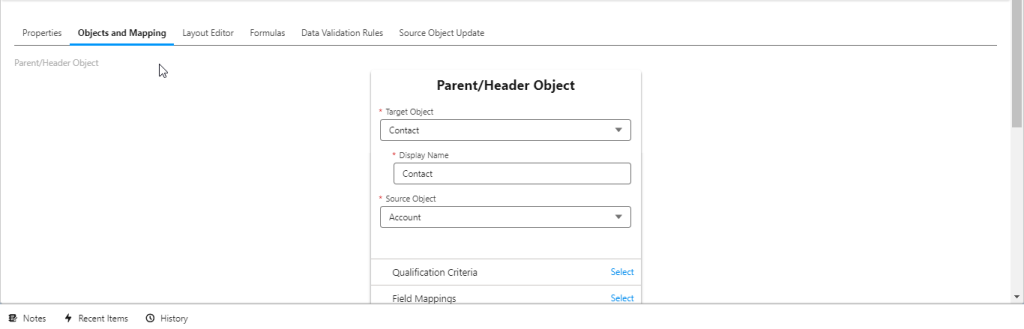
Here, we’re selecting the contact object as the target object and the account as the source object. Both are related to one another. If we select the contact as the target, the record is created in the contact object from the account object.
Step 7:
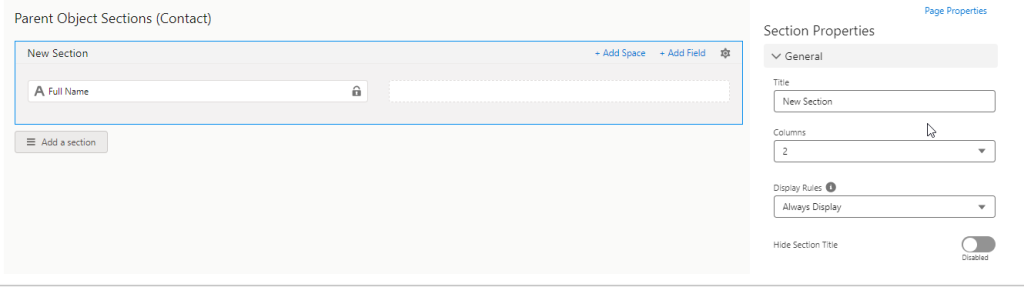
In the Layout Editor tab, we need to select the fields we need to add in the Contact fields, and the fields flow from the Account object.
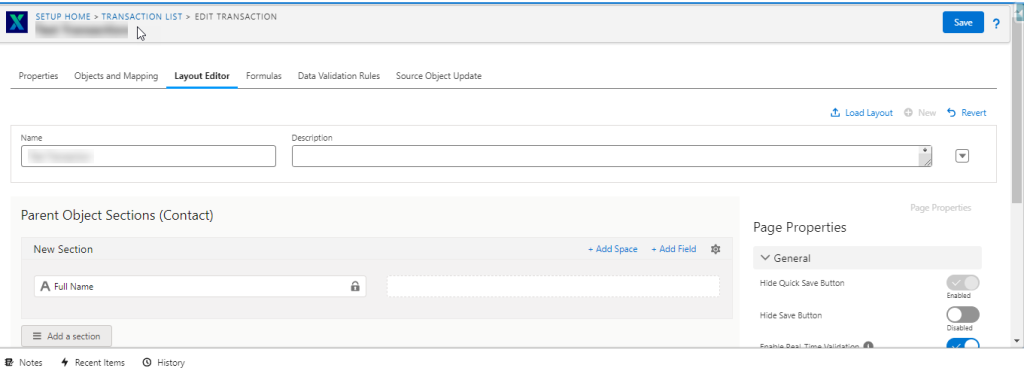
We’ve got the page properties to add sections and arrange the fields in a custom manner.
Step 8:
In the Formula tab, we need to create a formula for updating the contact fields based on account object fields.
Step 9:
In the Source Object Update tab, it is used for updating the Source object fields when the Contact field is created.
After the completion of creating a transaction designer, we need to add the SFM transaction to the Wizard in the Source object so that we’re able to use the SFM to create a contact record.